A few FCKEditor settings
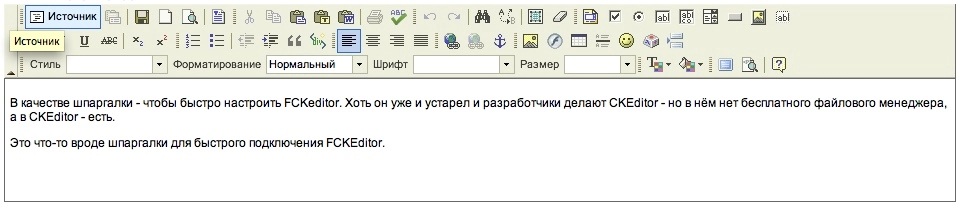
A note to self — for quickly setting up FCKeditor. It’s outdated and the developers are working on CKEditor instead, but CKEditor doesn’t have a free file manager, while FCKEditor does.
So this is a quick reference for getting FCKEditor up and running.
-
How to make the editor produce HTML rather than XHTML:
In the editor’s folder there’s a config file fckconfig.js, with a parameter FCKConfig.DocType. By default it’s empty and the editor generates code in the xhtml standard. To switch to html you set:FCKConfig.DocType = ''; -
File manager configuration:
At fckeditor/editor/filemanager/connectors/php there’s a config.php — set $Config["Enabled"] = true ; (false by default) and set the paths for $Config["UserFilesPath"] and $Config["UserFilesAbsolutePath"].
If you want to render textareas in your code and then have JavaScript replace them with a wysiwyg editor, with CKEditor you can simply give them class="ckeditor" — FCKEditor doesn’t have that (or I never found it). So if you have more than one textarea on a page and want to swap them all for the visual editor automatically, FCKEditor (when used this way — replacement via JavaScript) can only target an element by the id or name attribute. Since two elements can’t share an id, and name is often used for posting form data, I had to write my own thing. I load the editor via script and give every textarea class="fckeditor". I wrote a small JavaScript snippet using jQuery that replaces all textareas:
$(document).ready( function() {
    var $textareas = $('textarea.fckeditor');

    if ( $textareas.length > 0 ) {
        $textareas.each(function() {
            var textareaName = $(this).attr('name');
            var oFCKeditor = new FCKeditor(textareaName);
            oFCKeditor.BasePath = "fckeditor/"; // your path to fckeditor goes here
            oFCKeditor.ReplaceTextarea();
        });
    }
});