Animating the UISlider Thumb on Touch
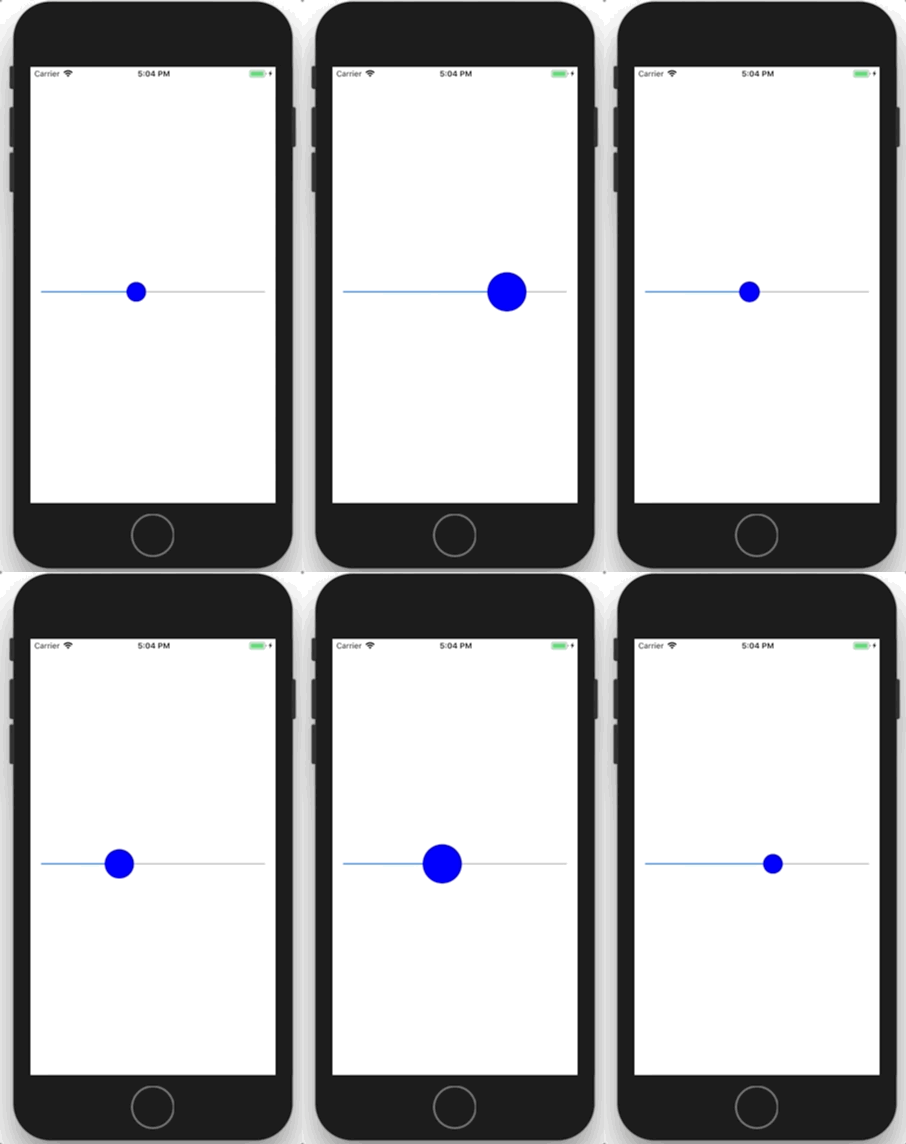
I had a task to animate the slider in the app on touch by smoothly enlarging the thumb. Just like Apple does in the Apple Music and Podcasts player when you start scrubbing the playback position. I spent quite a lot of time looking for a way to do it with standard tools. I really did not want to write a completely custom slider; I wanted to use the system UISlider, and in the end I managed to do exactly that.
UISlider inherits from UIControl. It lets you set your own position image for a specific state:
open func setThumbImage(_ image: UIImage?, for state: UIControlState) The .normal state is the regular slider state, and the .highlighted state is when we are touching the slider.
If we simply assign different images to two different states, we get a larger thumb. The only problem is that it will not be animated at all. You can animate a UIControl state transition from one state to another, but what happens is an image replacement, not a size change. I tried various transitions such as CATransition, but the best I could achieve for the state change animation was a smooth Fade In of the larger image for the .highlighted state, while what I needed was a smooth enlargement of the thumb itself.
So I had to abandon the idea of assigning two different images to different slider states. In the end I came up with this funny hack.
For convenience, let us add a function to the project that creates a circle of the required color and size and returns it as a UIImage:
extension UIImage {
    class func circle(diameter: CGFloat, color: UIColor) -> UIImage {
        UIGraphicsBeginImageContextWithOptions(CGSize(width: diameter, height: diameter), false, 0)
        let ctx = UIGraphicsGetCurrentContext()
        ctx!.saveGState()

        let rect = CGRect(x: 0, y: 0, width: diameter, height: diameter)
        ctx!.setFillColor(color.cgColor)
        ctx!.fillEllipse(in: rect)
        ctx!.restoreGState()

        let img = UIGraphicsGetImageFromCurrentImageContext()
        UIGraphicsEndImageContext()

        return img!
    }
}
Add a standard UISlider:
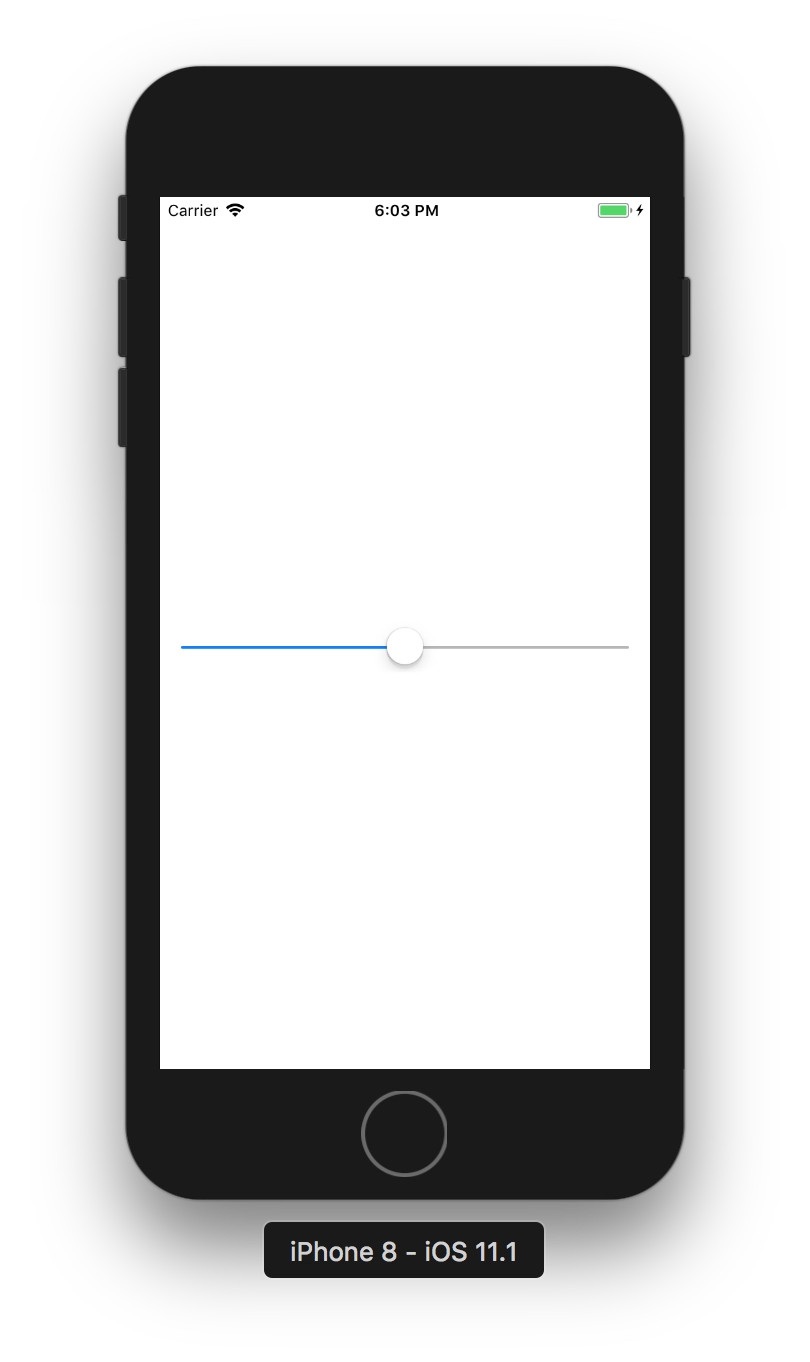
The next step is to create our own class that inherits from UISlider, and set the image in awakeFromNib():
class Slider: UISlider {
    override func awakeFromNib() {
        super.awakeFromNib()

        let positionImage = UIImage.circle(diameter: 30, color: UIColor.blue)
        self.setThumbImage(positionImage, for: .normal)
    }
}
In Interface Builder, set the Class field of our slider to the name of our subclass (Slider). We get a slider with a position thumb of the desired color:
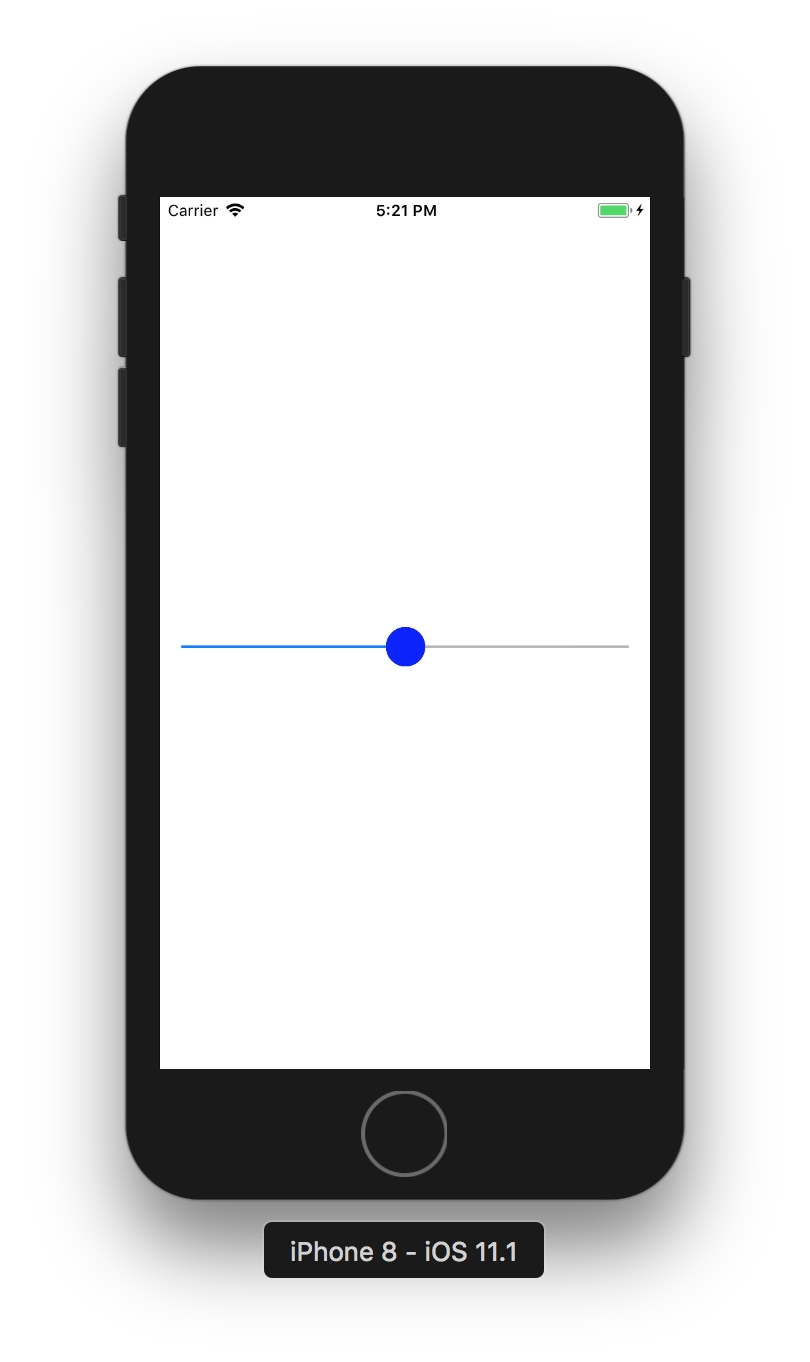
Now we need to add an image for the enlarged thumb that will appear on touch. We do this by simply adding a UIImageView:
class Slider: UISlider {
    /// Big position image view
    var bigImage = UIImageView()

    override func awakeFromNib() {
        super.awakeFromNib()

        let positionImage = UIImage.circle(diameter: 30, color: UIColor.blue)
        self.setThumbImage(positionImage, for: .normal)

        let positionImageBig = UIImage.circle(diameter: 60, color: UIColor.blue)
        self.bigImage.contentMode = .scaleAspectFit
        self.bigImage.clipsToBounds = false
        self.bigImage.image = positionImageBig

        self.addSubview(bigImage)
        self.bringSubview(toFront: bigImage)
    }
}
Next, we need to use the UISlider method that calculates the frame for the thumb image:
open func thumbRect(forBounds: CGRect, trackRect: CGRect, value: Float)The idea is to use this method to obtain and return the thumb frame without interfering with its normal inactive size (or, if you want, while interfering with it). After that we take the UIImageView with the large thumb and tell it to have the same position and the same size. This method is called continuously while we drag our UISlider, so the big indicator always stays in exactly the same place as the standard one and, for now, at exactly the same size:
class Slider: UISlider {
    // ... previous code

    /// Small indicator counted size
    var indicatorSize: CGSize? = nil

    override func thumbRect(forBounds bounds: CGRect, trackRect rect: CGRect, value: Float) -> CGRect {
        let unadjustedThumbrect = super.thumbRect(forBounds: bounds, trackRect: rect, value: value)

        let origin = unadjustedThumbrect.origin
        let size = unadjustedThumbrect.size

        if self.indicatorSize == nil && unadjustedThumbrect.size.width > 0 {
            self.bigImage.frame = unadjustedThumbrect
            self.indicatorSize = size
        }

        let bigImageSize = self.bigImage.frame.size

        self.bigImage.frame.origin = CGPoint(
            x: origin.x - (bigImageSize.width/2 - size.width/2),
            y: origin.y - (bigImageSize.height/2 - size.height/2)
        )

        self.bringSubview(toFront: bigImage)

        return unadjustedThumbrect
    }
}
Visually you do not see any difference yet, but together with the built-in thumb we now always have an image for the enlarged state at the same position, moving together with it.
And finally, when the user touches the slider, we simply animate the enlargement of our bigImage. And, accordingly, shrink it when the touch ends. For that we use the built-in isHighlighted property of UISlider and animate when its value changes:
class Slider: UISlider {

    override var isHighlighted: Bool {
        didSet {
            // avoid situation when indicator size didn't count yet
            guard self.indicatorSize != nil else { return }

            UIView.animate(withDuration: 0.3) {
                if self.isHighlighted == true {
                    self.bigImage.transform = CGAffineTransform(scaleX: 2, y: 2)
                } else {
                    self.bigImage.transform = CGAffineTransform(scaleX: 1, y: 1)
                }
            }
        }
}

    // ..other code
}
Done. The position thumb in the slider is now animated when interacting with it:
You can see the full code on GitHub: https://github.com/makoni/CustomUISlider