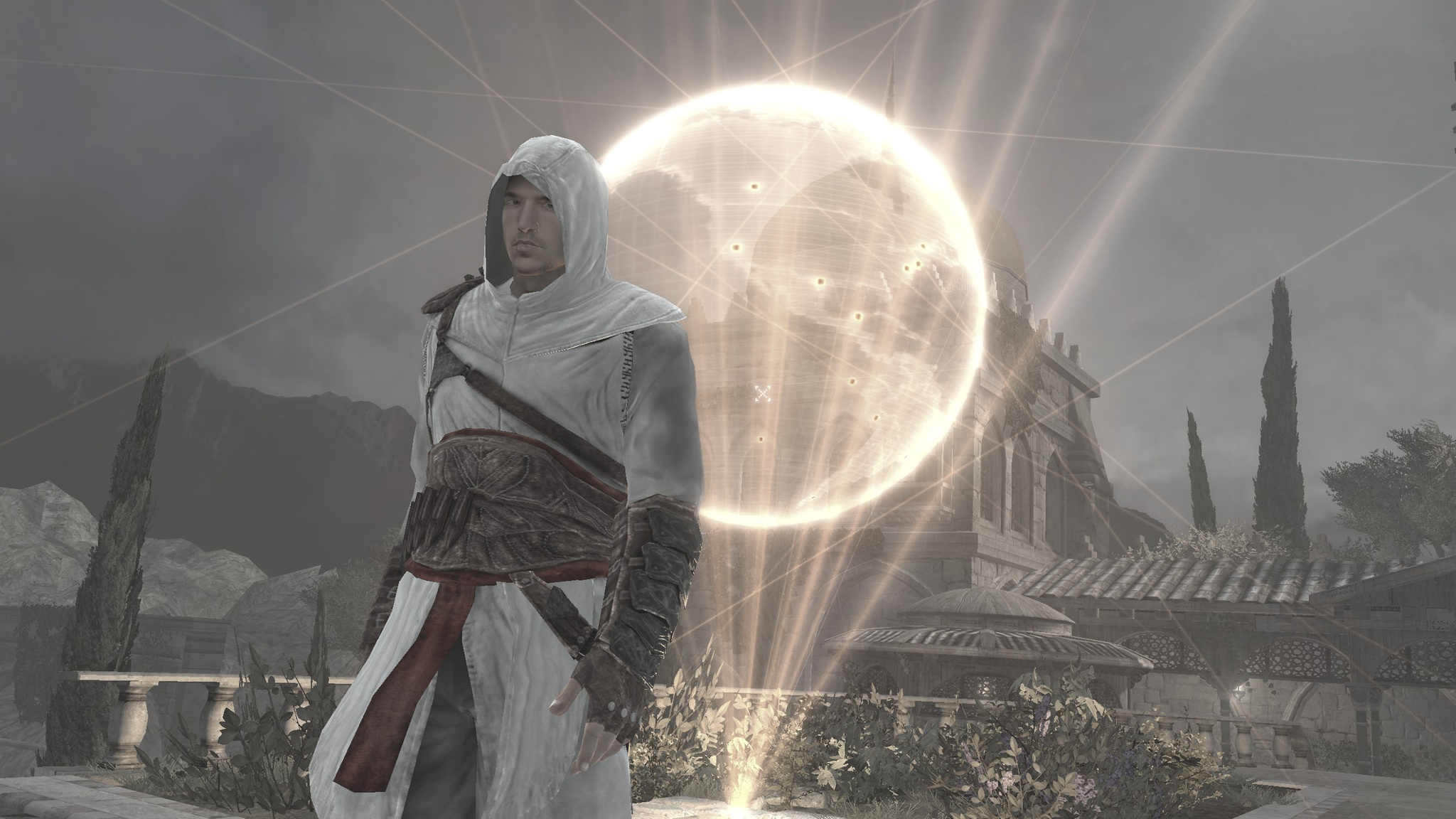
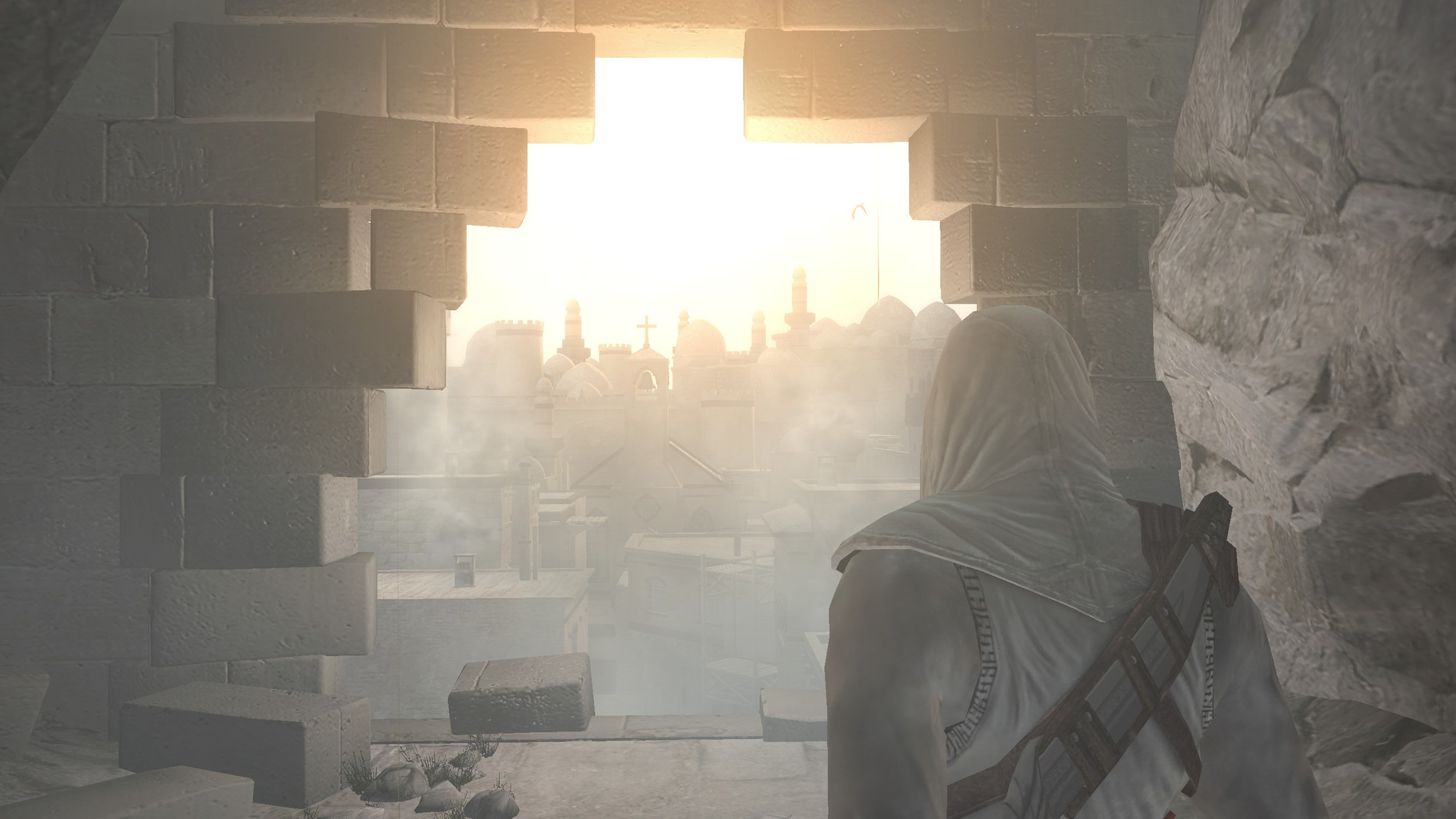
Back when I was still a student, I played the first Assassin's Creed. I liked that game a lot at the time and went through several more, up to Assassin's Creed: Revelations. I played the early entries on PC, and Revelations, which I liked the least, on PS3, which made me like it even less. In games like this, controllers just are not for me. Then I stopped playing this series for a long time. Mostly because they stopped releasing OS X versions. A couple of weeks ago I decided I wanted to play through the whole series - both the parts I had already played before and the ones I had not. Especially since the older versions cost only 300-400 rubles on Steam now. I finished the first part and decided to write down my impressions.
Assassin's Creed always pleased me, of course, with its interesting story, beautiful locations, landscapes, and relative freedom of action. The first part uses the common prologue pattern where the action starts immediately and the main character has access to the full arsenal of weapons and moves right away. After the opening, the main story begins, where you gradually learn everything the game has to offer - new moves, weapons, and so on. What I like about Assassin's Creed is a certain balance between the story and the gameplay. On the one hand there is a cinematic side consisting of 2 storylines - the future, where the assassin descendant Desmond Miles is held by some organization so they can dig through the past of his ancestors, which is stored in his genes as a kind of ancestral memory, and the past, which is what they are actually digging through. So you get two plotlines that are connected to each other. Besides the cinematic part, the game gives you relative freedom of action - if you want, do everything in stealth mode and complete missions quietly; if you want, gather pretty much every soldier in the location together and turn it into a bloodbath until you take them all out. Or until they take you out.
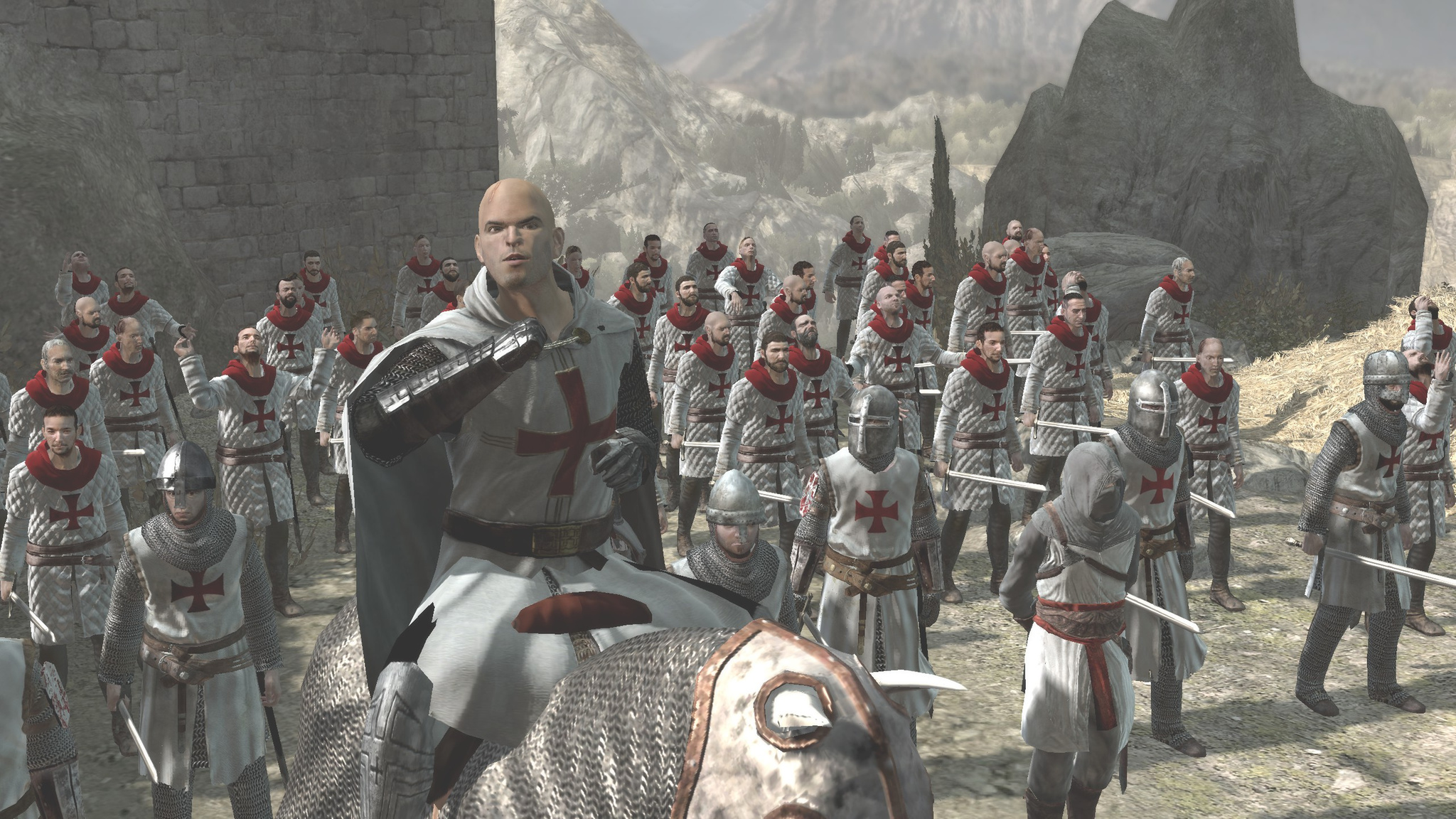
At the center of the story is the Middle Ages, the year 1191, the Third Crusade, and the confrontation between the Templar Order and the Assassin Order against the backdrop of the war between the crusaders and the Saracens. Playing as an assassin named Altaïr, in the end you fight pretty much everyone. In general, the soldiers are all the same, differing only in appearance, but even that did not bother me in 2008 when I first played it. I have loved history since childhood, so it was quite interesting to look at all of this. And on top of that, the plot briefly presents an alternate history in which the waters did not part before Moses, and Jesus did not turn water into wine.
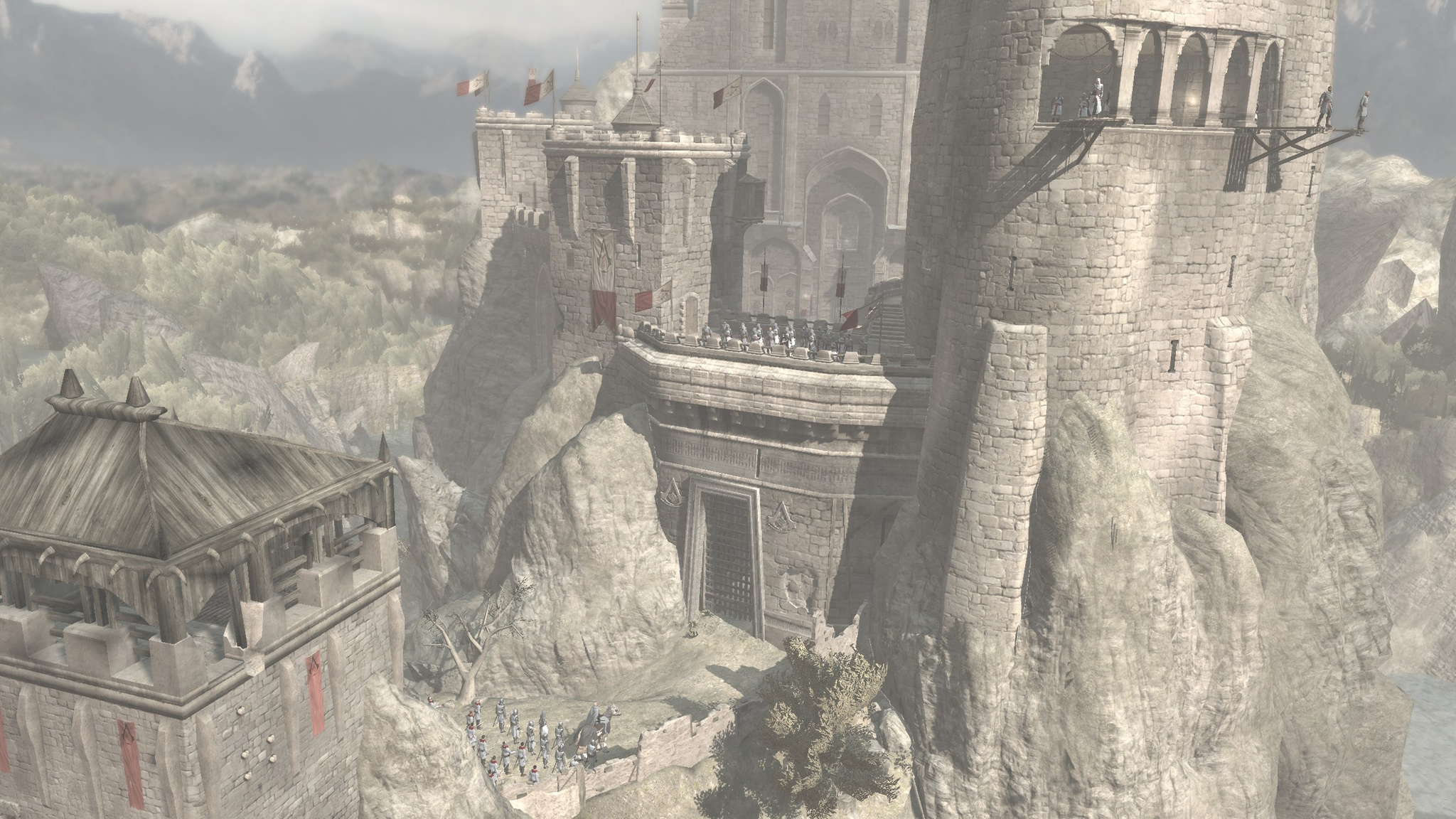
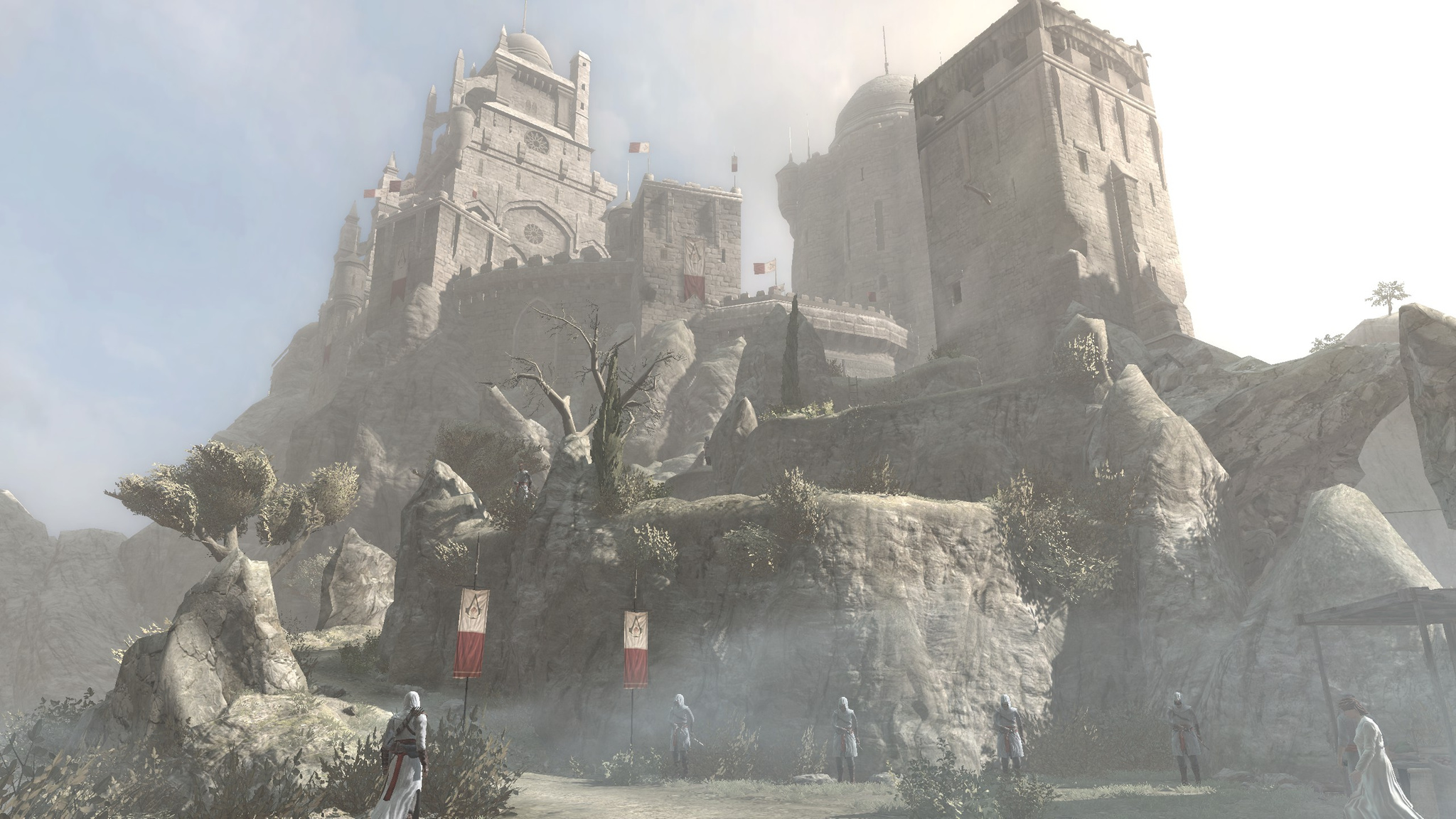
You start from the assassins' fortress. On the one hand, they are supposed to hide, disguise themselves as monks to blend into the crowd, and operate in the shadows, while on the other hand they have their own castle and the templars even know where it is. They even begin besieging it at the start of the game, but the assassins manage to drive them off. On the one hand it seems like a plot hole; on the other hand, the game gives an answer to that question at the end.
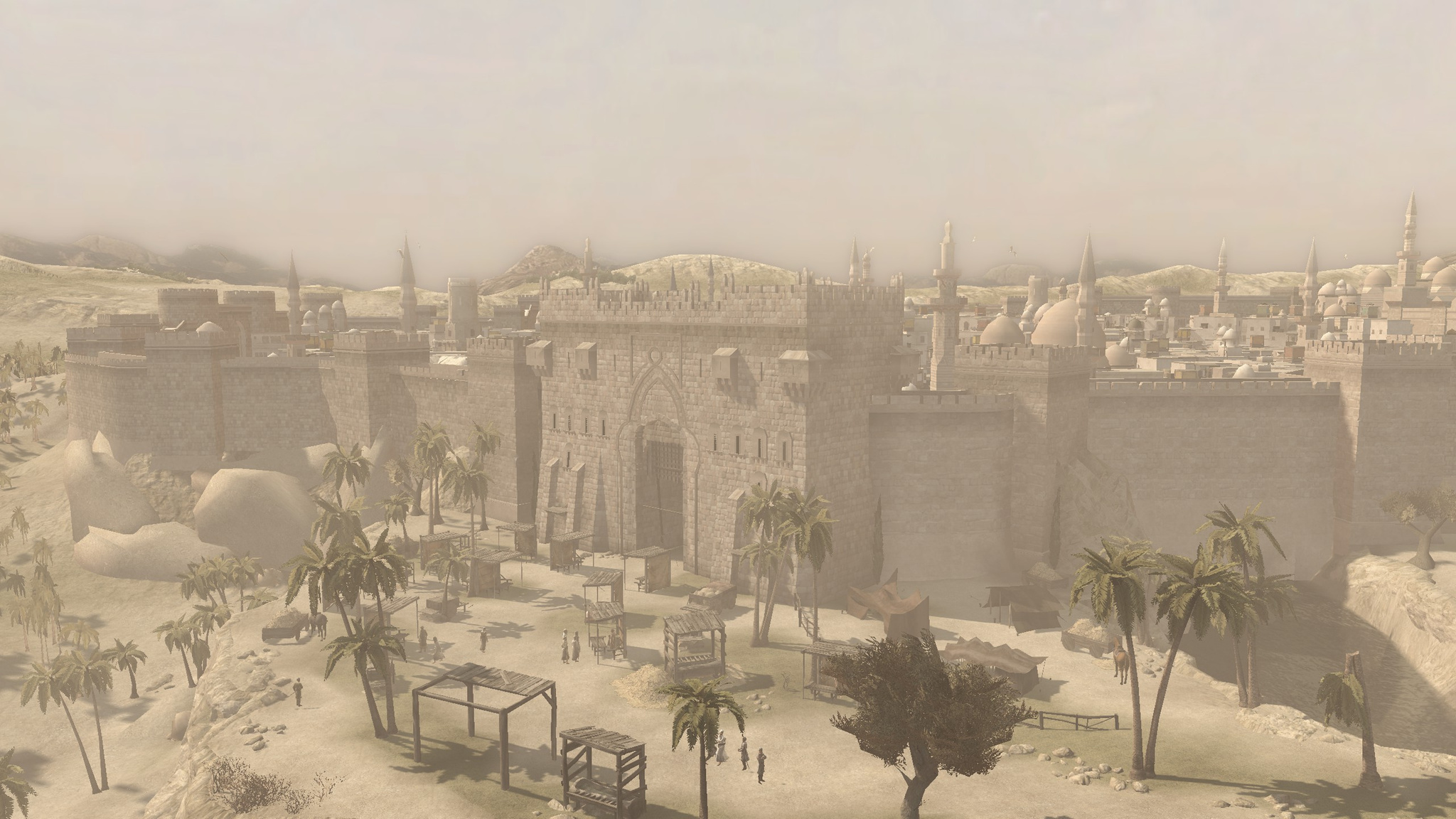
The game has 3 different cities - Acre, Jerusalem, and Damascus. Plus the assassins' castle with the settlement next to it (Masyaf), as well as locations between the cities that are simply called the Kingdom, although different parts of this kingdom belong to different forces. All the cities differ from one another visually - both in architecture and in the color palette of the graphics, which also creates their own atmosphere.
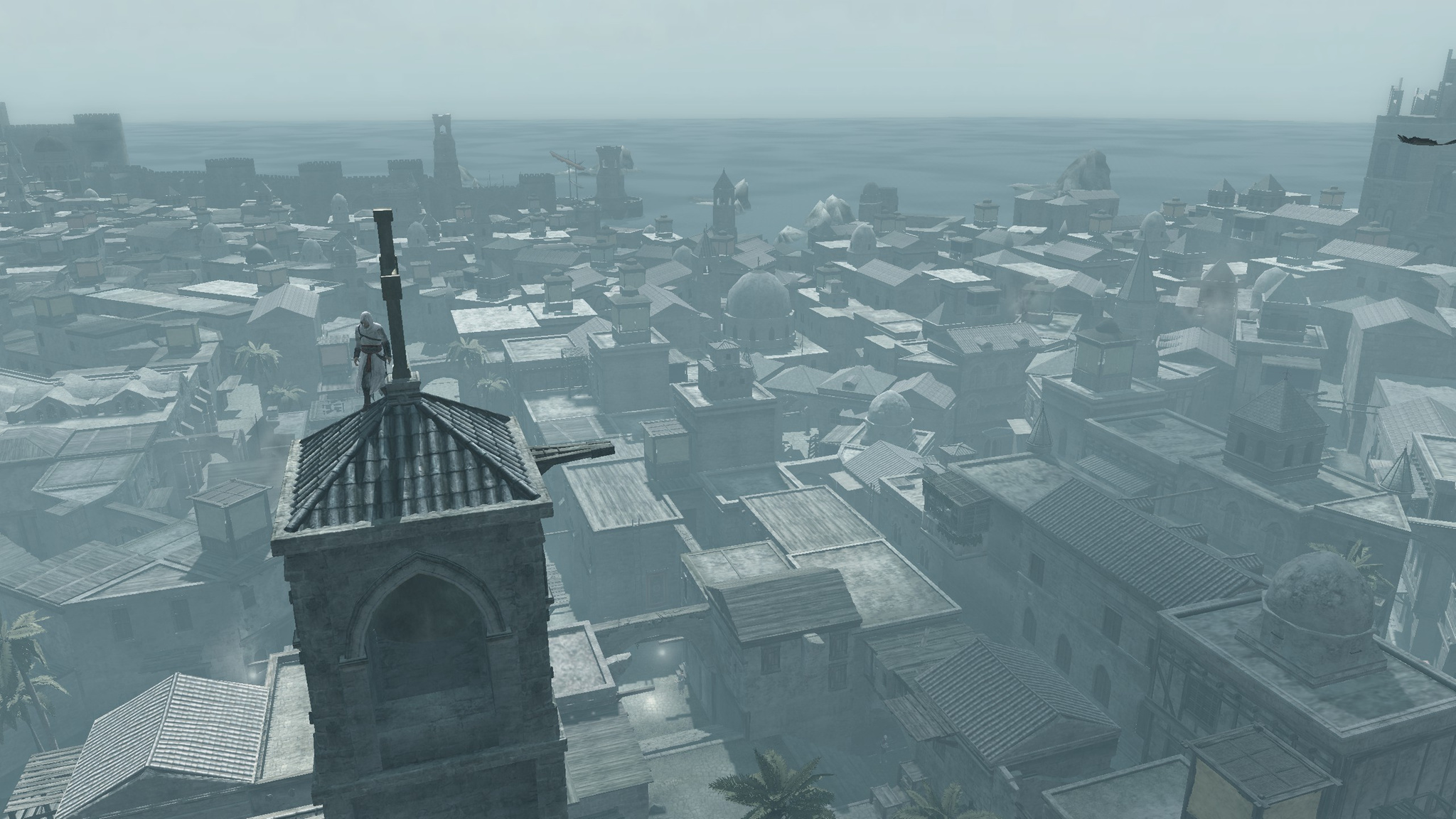
What is cool is that you can explore the whole world in any order. You can start with any city. The first time you approach a new city, you immediately have several ways to get inside. If you want, take out the guards at the gate. If you want, climb over the wall or over the gate above them. If you want, pretend to be a monk and walk past the guards with them.
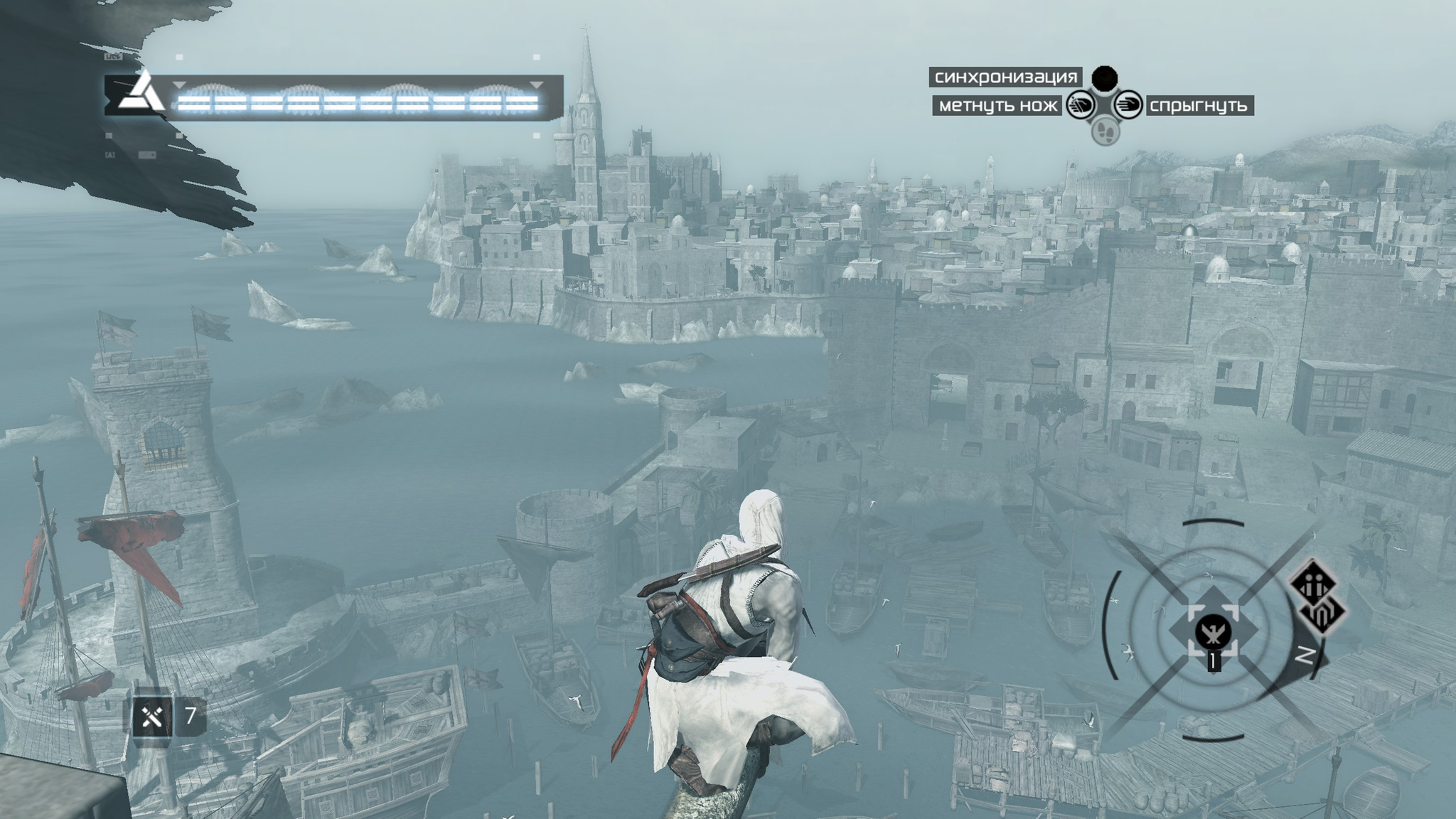
And now for the bad. There is quite a lot of routine in the game. To see missions on the map, you constantly have to climb high points to look around. Usually these are some kind of towers. On the other hand, you can admire the scenery of the virtual world. At least they came up with a fast way down, even if it is completely unrealistic. Jumping from the height of a ten-story building into a wooden hay cart and not dying... and even landing in it from that height... Still, it looks spectacular. For completionists there are quite a few scorekeeping activities - collect all the flags, of which there are many kinds. Find and eliminate all the templars. I had absolutely no desire to spend time on that just to gather everything. Each stage is a new mission where you need to deal with someone, and every time you are expected to do the same thing - come to the assassins' brotherhood headquarters in the city, get instructions on where to begin, and after that everything is always formulaic. Run against the clock, deal with guards, eavesdrop, beat someone up, or collect flags against the clock. At first it feels interesting and varied, and to begin the assignment you do not even have to do all of this. But later it gets boring. There are 9 assassinations in the game, and 9 times you have to go through all of this. The map is scattered with townspeople whom guards are harassing. You can help them, and then some guys will hold back the guards chasing you so it is easier for you to hide. That is useful if you do not want to fight, but on the other hand you have to fight for them to appear. I helped them mostly so I could fight the guards, because the bloodbath turns out fun. You can stab someone at the start with the hidden blade, throw a knife at someone else, shove someone into a market stall, and chop up the rest with a sword. Overall, for me the hacking and slashing was the most interesting part of the gameplay.
But after completing the side tasks, the most interesting part begins. You have supposedly gathered the necessary information about the target and go carry out your mission - to take out the villain who, as a rule, is preparing a coup in order to seize power. The scenarios there are more varied, and the ways to complete them vary too. Usually you can either do everything cleanly in stealth mode and get away, or fight your way through and chop everyone to pieces. And the final part of the mission always continues telling the story and explaining what is happening both in the past and in the future.
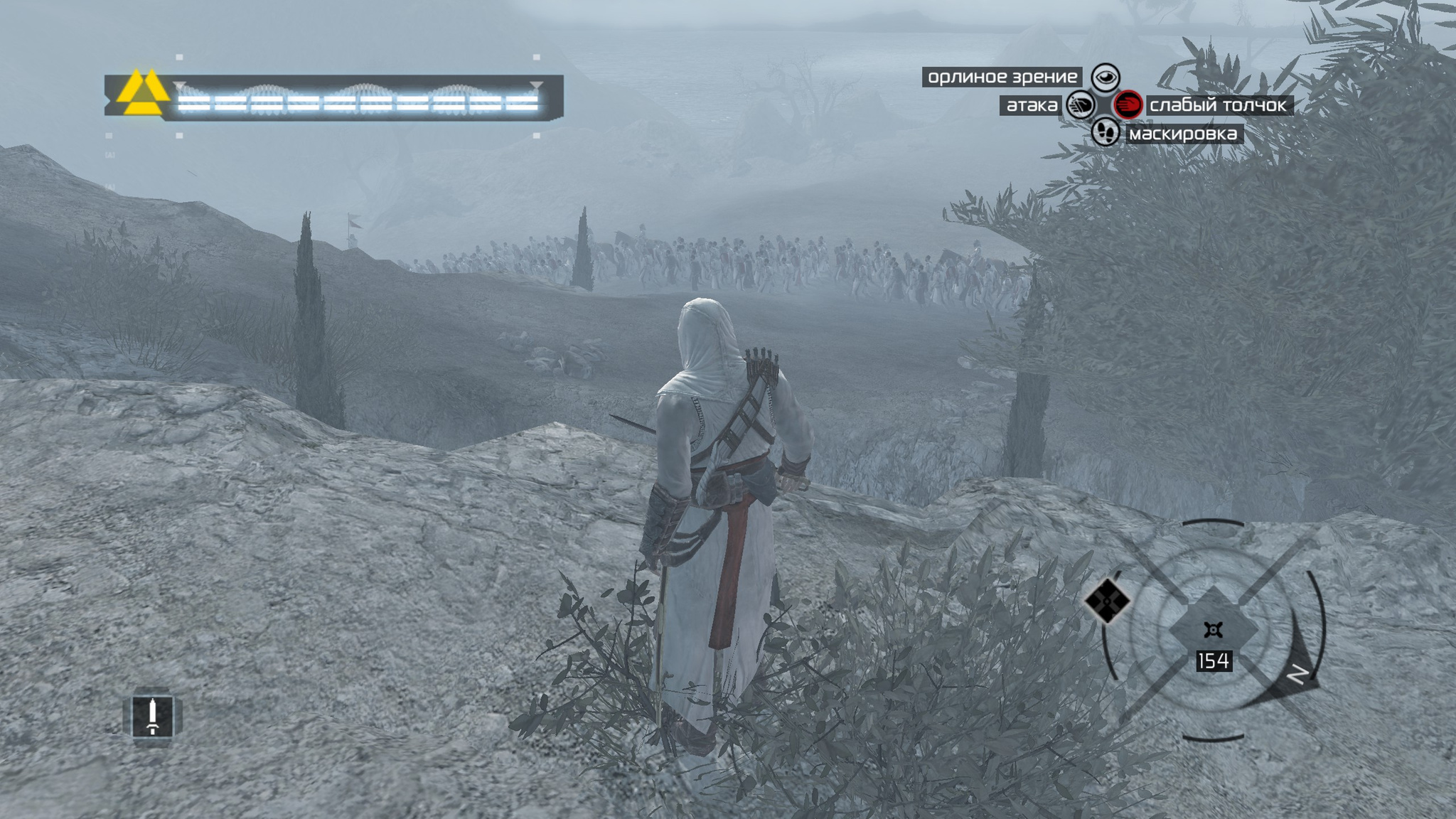
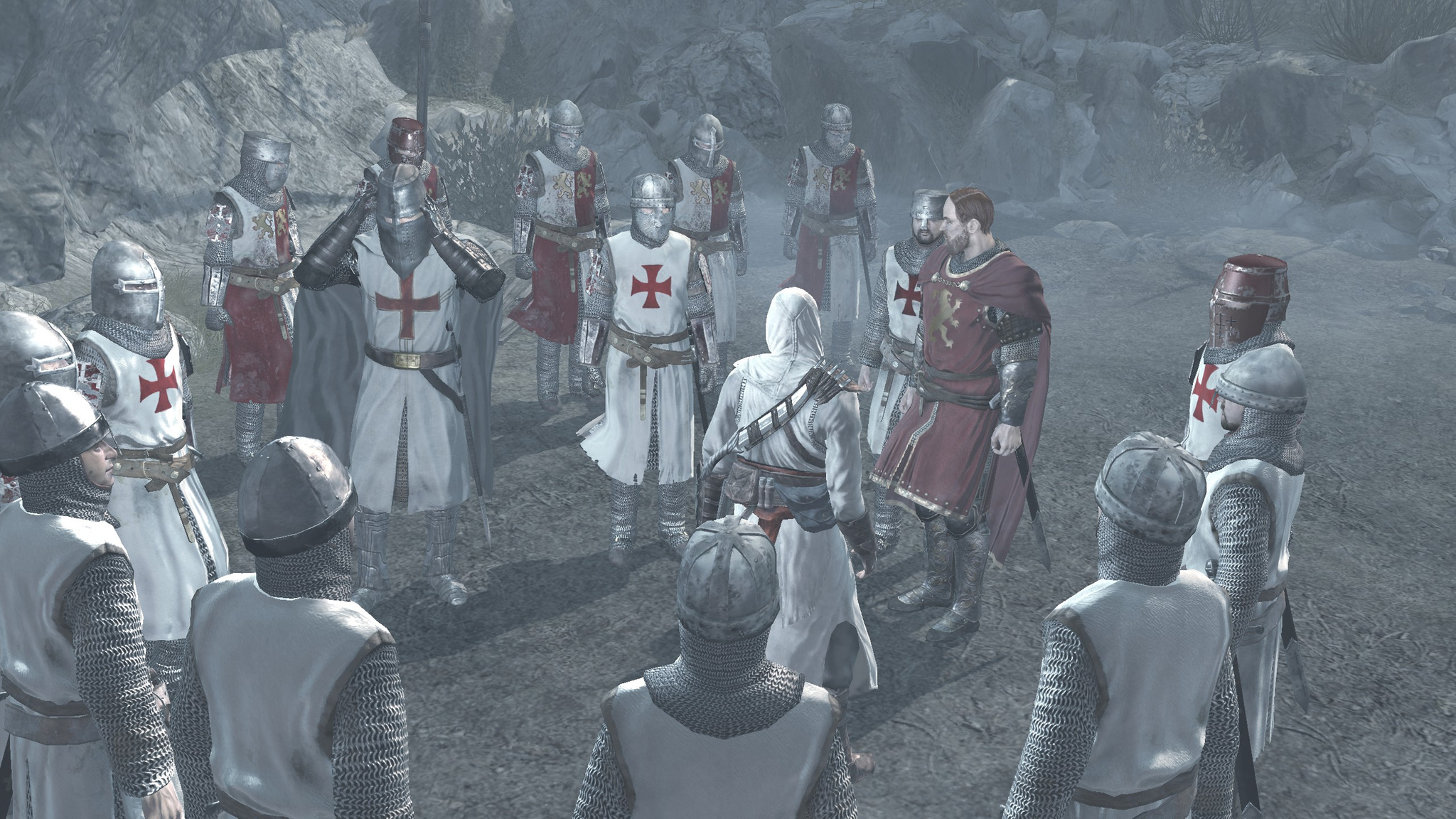
Sometimes in the story sections you see interesting scenes. For example, closer to the finale you move through the Kingdom and see an army on the march. What is cool is that historical figures are woven into the game's story. For example, you can talk with King Richard of England, who leads the crusade.
When I played it for the first time, the game seemed insanely cool to me. Now, against the background of the later entries, where a lot was added to the gameplay, it looks sparse and repetitive in places. But overall the impression is still positive. Apparently the story does its job. The story in the past is interesting, and at the same time you really want to know what is happening in the future and what all the fuss is about. The many mysteries and unanswered questions in the narrative are very intriguing. Steam showed that I finished the game in 22 hours, without spending time on obsessive scavenger hunts around the map, but doing all the missions for gathering information on the target. You can finish it over a weekend and enjoy the story. Besides, the game was excellently dubbed into Russian.